Your data · 3 min read
Back up Pocket and move to a new Mac
Find Pocket's data file, export a JSON backup and import it on another Mac. See where daily backups are stored and how optional sync changes the setup.
Updated
Find your data file
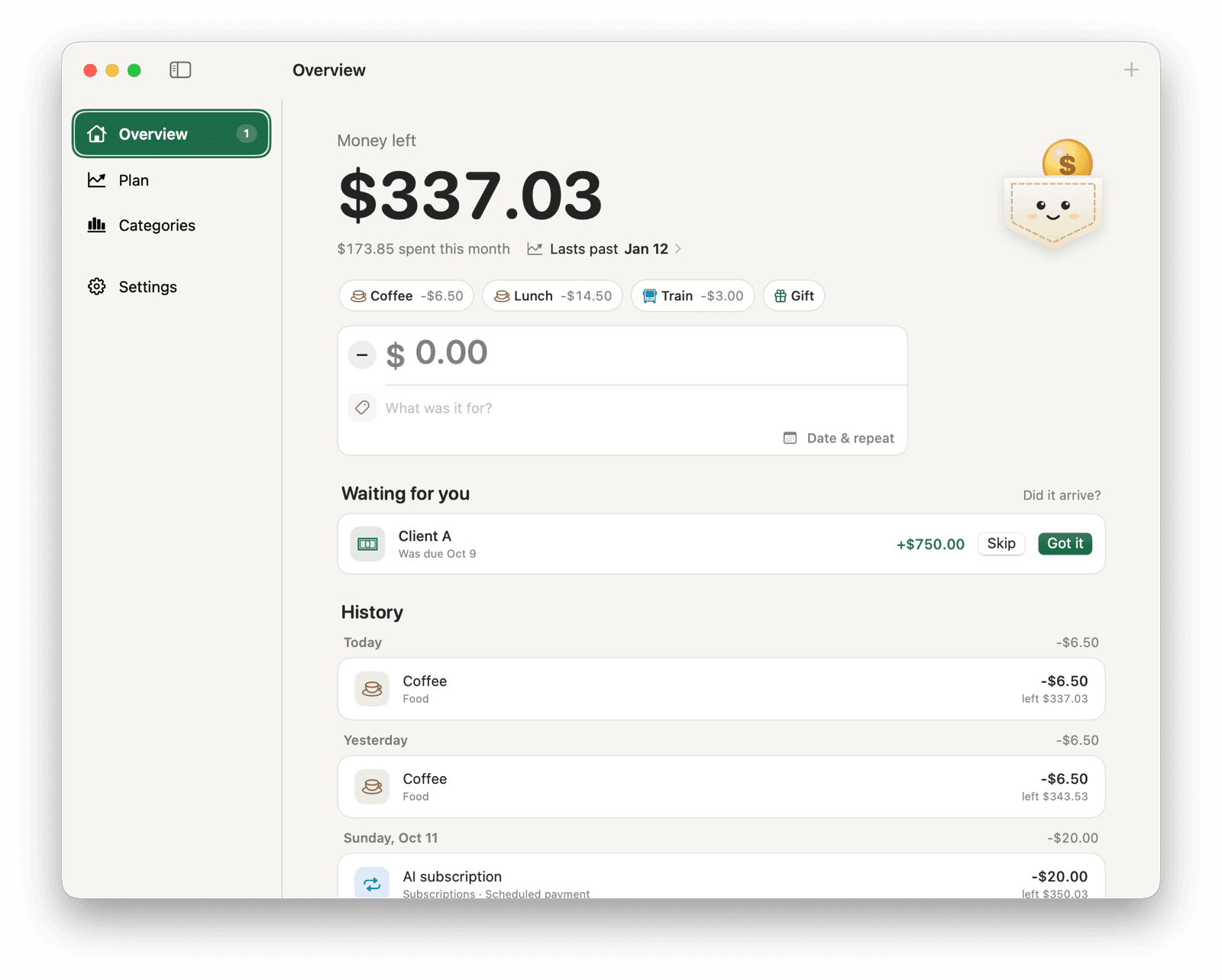
Pocket saves your money data on your Mac by default. You can use the local app without an account. Entries, planned payments and quick-add buttons are saved together.
Open Settings and click Show in Finder next to Data file. In local mode, the file is normally ~/Library/Application Support/Pocket/ledger.json.
Pocket keeps seven daily backups in its data folder on the same Mac. Keep an exported copy elsewhere so you can recover it if you lose the computer or its drive.
Export a backup
Export saves a JSON copy of your money data. Choose a storage location you control.
- Open Settings and find Backup.
- Click Export and choose a filename and destination. A dated filename makes copies easier to distinguish.
- Keep the file somewhere you can access if this Mac stops working, such as an external backup drive.
Import on a new Mac
Import replaces Pocket's local data. If you already have entries on the new Mac, export them before importing another file.
- Install Pocket on the new Mac and open it in local mode.
- Transfer your exported JSON file to that Mac.
- Open Settings, click Import and select the file. Review the replacement prompt, then confirm Replace.
- Check your balance, recent entries, planned payments and quick-add buttons after importing.
Use sync for a shared balance across devices
With optional self-hosted sync, your chosen server stores the shared main copy. Your Mac keeps a copy in account-ledger.json and queues changes while offline.
You can export while connected. Import is available only in local mode and replaces only the local data.
To use the same balance on your phone or another computer, follow the self-hosting guide and pair devices in Settings under Sync. You will need a server you run.